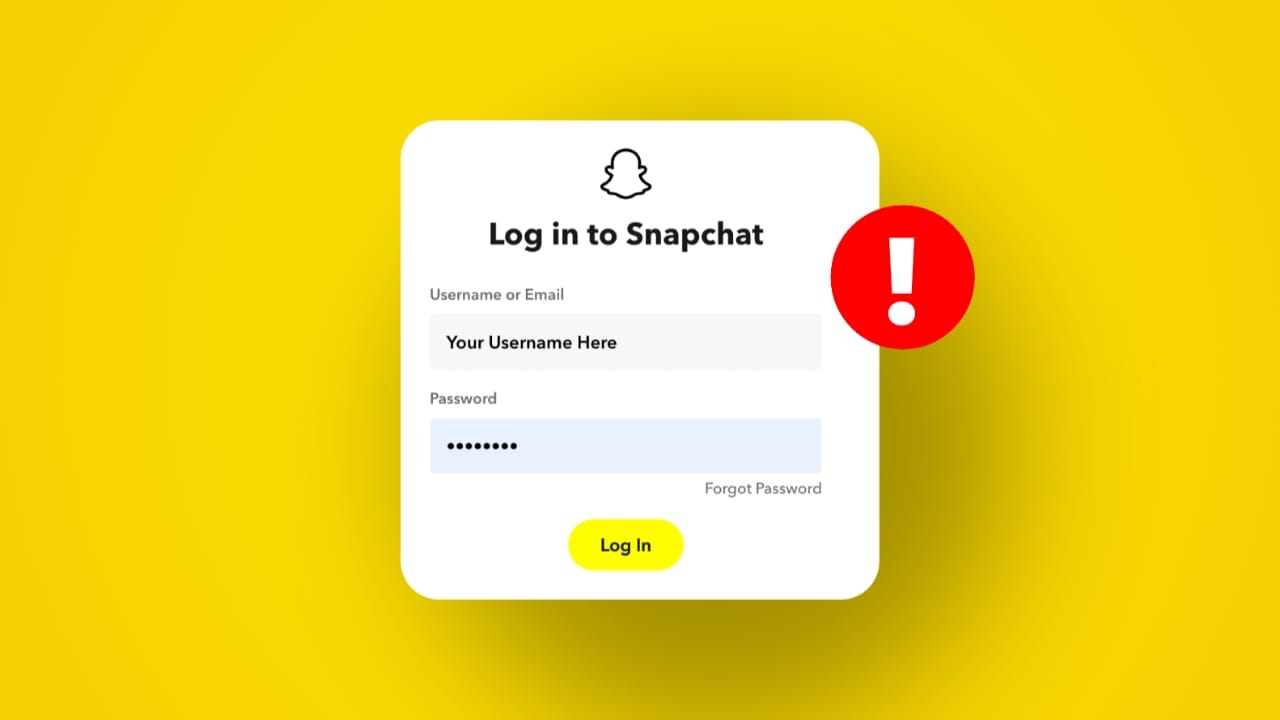
Can’t log in to Snapchat?
Few things are more frustrating than opening the app and seeing an error message instead of your snaps and chats. Whether it’s a wrong password error, account lock, or connection problem, login issues can happen to anyone.
In this complete 2026 guide from Unplix, you’ll learn 13 easy and safe ways to fix Snapchat login issues and regain access to your account. The steps are beginner-friendly and designed to solve the most common problems without risking your account security.
Let’s get started.
Why Snapchat Login Issues Happen
Before fixing the problem, it helps to understand the cause.
Common reasons include:
- Incorrect username or password
- Weak internet connection
- Outdated Snapchat app
- Temporary server issues
- Account locked due to suspicious activity
- Using third-party apps
Most login issues are temporary and can be fixed in minutes.
13 Easy Ways to Fix Snapchat Login Issues
Follow these steps one by one until your account works again.
1. Double-Check Your Username and Password
Typing mistakes are more common than you think.
Make sure:
- Caps Lock is off
- No extra spaces are added
- You’re using the correct email or username
If unsure, tap “Forgot Password?” to reset it.
2. Reset Your Snapchat Password
If login fails repeatedly:
- Tap Forgot Password
- Choose Email or SMS verification
- Follow the reset link
- Create a strong new password
Use a mix of letters, numbers, and symbols.
At Unplix, we recommend updating passwords regularly for better security.
3. Check Your Internet Connection
Snapchat requires a stable connection.
Try:
- Switching between Wi-Fi and mobile data
- Restarting your router
- Turning Airplane mode on and off
Poor connectivity often triggers login errors.
4. Update the Snapchat App
An outdated app may prevent login.
Go to:
- Google Play Store (Android)
- App Store (iPhone)
Search Snapchat and tap Update if available.
5. Restart Your Phone
Sometimes, a simple restart fixes temporary glitches.
Turn off your phone, wait 30 seconds, then turn it back on.
Open Snapchat and try logging in again.
6. Clear Snapchat Cache (Android Users)
If you’re using Android:
- Go to Settings
- Tap Apps
- Select Snapchat
- Tap Storage
- Choose Clear Cache
This removes temporary files without deleting your data.
7. Reinstall the Snapchat App
If problems continue:
- Uninstall Snapchat
- Restart your phone
- Reinstall from official store
This refreshes the app completely.
8. Check If Snapchat Is Down
Sometimes the issue isn’t yours.
Snapchat servers may be temporarily down.
Search online or check social media for outage reports.
If servers are down, wait until they’re restored.
9. Unlock Your Account
Snapchat may lock accounts due to:
- Suspicious activity
- Multiple failed login attempts
- Using unauthorized third-party apps
To unlock:
- Visit Snapchat’s official unlock page
- Log in
- Tap Unlock
Avoid repeated login attempts while locked.
10. Remove Third-Party Apps
Snapchat does not allow unofficial plugins or modified apps.
If you’re using:
- Snap mods
- Automation tools
- Unauthorized extensions
Uninstall them immediately.
This is one of the most important safety tips shared by Unplix.
11. Check Date and Time Settings
Incorrect device time can block login.
Go to:
Settings → Date & Time → Enable Automatic Date & Time
Then restart Snapchat.
12. Disable VPN
Some VPN services interfere with Snapchat login.
Turn off VPN temporarily and try again.
If login works, your VPN may be the cause.
13. Contact Snapchat Support
If nothing works:
- Visit Snapchat Support
- Submit a request
- Provide correct account details
Avoid sharing passwords with anyone claiming to help.
Common Snapchat Login Error Messages & Solutions
Here are frequent errors and what they mean.
“Could Not Connect”
Usually caused by internet issues.
Switch networks or restart your device.
“Your Account Has Been Locked”
Triggered by suspicious activity.
Unlock via Snapchat’s official page.
“Invalid Credentials”
Wrong username or password.
Reset your password immediately.
“Temporarily Disabled”
Wait 24 hours before trying again.
Avoid repeated attempts.
Benefits of Fixing Login Issues Quickly
Taking action fast helps you:
- Protect your account from hacking
- Avoid permanent account lock
- Restore access to chats and memories
- Maintain Snap streaks
- Keep personal data secure
Following trusted troubleshooting steps, like those shared on Unplix, reduces the risk of further problems.
How to Prevent Snapchat Login Issues in 2026
Prevention is always better than recovery.
Here’s how to avoid future issues:
- Enable two-factor authentication
- Use a strong, unique password
- Avoid third-party apps
- Keep the app updated
- Don’t share login details
These small habits make a big difference.
Frequently Asked Questions (FAQ)
1. Why can’t I log in to Snapchat even with the correct password?
Your account may be locked, temporarily disabled, or affected by server issues. Try unlocking it through official support.
2. How long does Snapchat lock an account?
Temporary locks may last 24 hours. Permanent locks require contacting support.
3. Does clearing cache delete my Snapchat account?
No. Clearing cache only removes temporary files and does not delete account data.
4. Can a VPN cause Snapchat login issues?
Yes. Some VPNs trigger security alerts and block login access.
5. What should I do if my Snapchat account was hacked?
Reset your password immediately and enable two-factor authentication. Contact Snapchat Support if access is lost.
Final Thoughts
Snapchat login issues can feel stressful, but most problems are simple to fix. By following these 13 easy methods, you can safely regain access without risking your account.
Always use official apps and avoid suspicious tools.
At Unplix, our goal is to provide clear, beginner-friendly tech guides that help you solve problems confidently. If this guide helped you log in again, consider bookmarking it for future reference.
Stay safe and secure online.