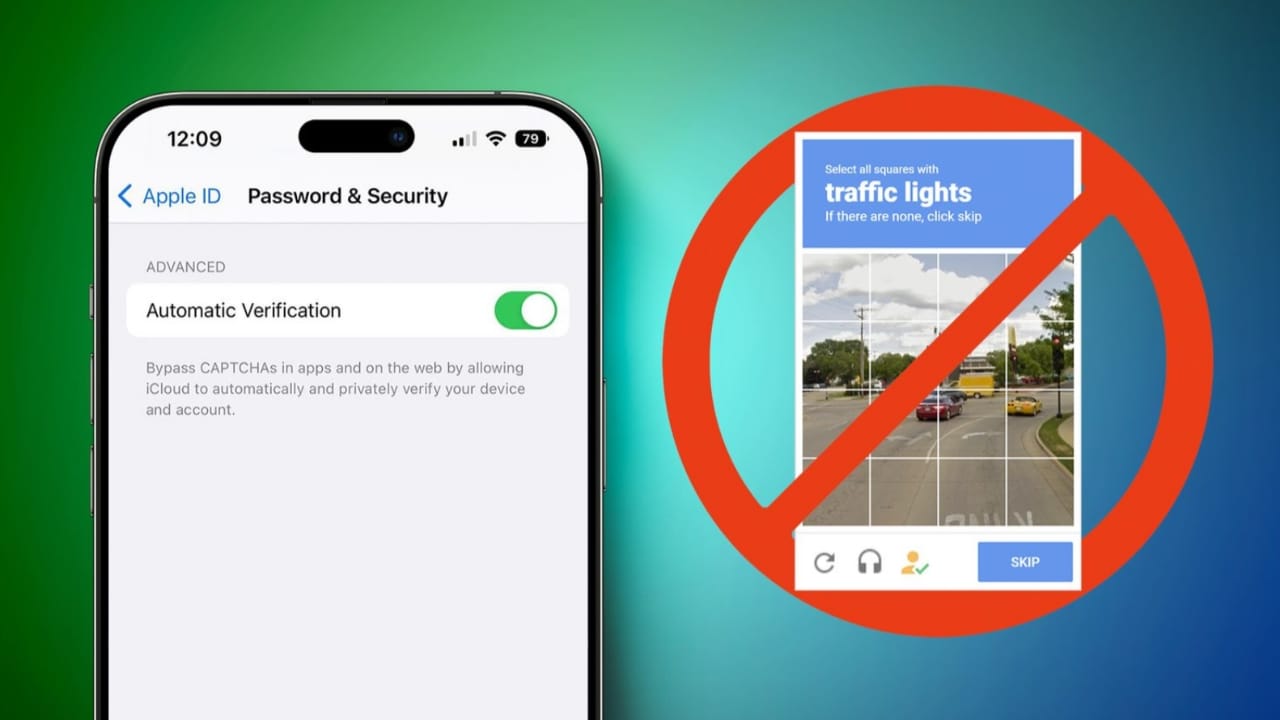
Have you ever tried to log into a website and had to click traffic lights, buses, or crosswalks just to prove you’re human? CAPTCHA tests can be frustrating, especially when you’re in a hurry.
The good news is that Apple Inc. offers a built-in feature that helps reduce or automatically bypass certain CAPTCHA challenges on your iPhone and Mac.
In this complete 2026 guide by Unplix, we’ll explain how this feature works, how to enable it, and how it improves your browsing experience—without compromising security.
Let’s get started.
What Is Automatic CAPTCHA Bypass on Apple Devices?
Apple introduced a privacy-focused feature called Automatic Verification. It allows supported websites to confirm that you are a real user without forcing you to solve traditional CAPTCHA puzzles.
Instead of clicking images, your device securely verifies your identity using Apple’s system. This process is private and encrypted.
At Unplix, we always recommend using official system features instead of third-party bypass tools, which can be unsafe.
How Apple’s Automatic Verification Works
Apple devices use encrypted tokens to confirm that:
- You are signed in with a valid Apple ID.
- Your device is legitimate.
- You are not a bot.
Websites that support this feature receive a verification signal automatically. This means fewer CAPTCHA challenges for you.
This feature works best when your device software is up to date.
How to Automatically Bypass CAPTCHA on iPhone (Step-by-Step)
Follow these simple steps.
Step 1: Open Settings
Unlock your iPhone and open the Settings app.
Step 2: Tap Your Apple ID
At the top of the screen, tap your name to open Apple ID settings.
Step 3: Select “Password & Security”
Inside your Apple ID settings, tap Password & Security.
Step 4: Turn On Automatic Verification
Look for Automatic Verification.
Toggle it ON.
Once enabled, your iPhone will automatically verify you on supported websites without requiring manual CAPTCHA input.
That’s it.
How to Automatically Bypass CAPTCHA on Mac (Step-by-Step)
The process on Mac is similar.
Step 1: Open System Settings
Click the Apple logo in the top-left corner.
Select System Settings.
Step 2: Click Your Apple ID
Choose your Apple ID from the sidebar.
Step 3: Open Password & Security
Click Password & Security.
Step 4: Enable Automatic Verification
Turn ON Automatic Verification.
Your Mac will now handle supported CAPTCHA checks automatically.
Requirements for Automatic CAPTCHA Bypass
To use this feature:
- You must be signed in with your Apple ID.
- Your device must be updated to a recent version of iOS or macOS.
- The website must support Apple’s Automatic Verification system.
Not all websites support this yet, but many major platforms do.
Benefits of Automatic CAPTCHA Bypass
Here’s why enabling this feature is helpful.
1. Faster Browsing
No more solving puzzles repeatedly.
2. Improved Privacy
Your device verifies you without sharing personal data with websites.
3. Better User Experience
Less interruption while signing up or logging in.
4. Built-In Security
This feature is officially developed by Apple, making it safer than third-party tools.
5. No Extra Apps Required
Everything works directly from system settings.
At Unplix, we always encourage using official features rather than risky browser extensions that claim to “hack” CAPTCHA systems.
Common Problems & Solutions
Even with Automatic Verification enabled, you may still encounter issues.
Problem 1: CAPTCHA Still Appears
Solution:
Not all websites support Apple’s system. In such cases, you must complete the CAPTCHA manually.
Problem 2: Automatic Verification Option Missing
Solution:
Update your device to the latest version of iOS or macOS.
Go to:
- Settings → General → Software Update (iPhone)
- System Settings → General → Software Update (Mac)
Problem 3: Not Signed in to Apple ID
Solution:
Make sure you are logged into your Apple ID on your device.
Problem 4: Using a Different Browser
Automatic Verification works best in Safari. If you are using another browser, results may vary.
Problem 5: Network Restrictions
Some VPNs or strict network settings may interfere with verification. Try disabling them temporarily.
Is It Safe to Bypass CAPTCHA Automatically?
Yes, when using Apple’s official system.
It does not “hack” CAPTCHA. Instead, it verifies your device securely in the background.
Avoid:
- Third-party CAPTCHA bypass apps
- Browser extensions claiming instant bypass
- Unknown tools requiring special permissions
These can compromise your security.
As highlighted on Unplix, online safety should always come first.
Best Practices for Secure Browsing
Even with Automatic Verification enabled, follow these tips:
- Keep your device updated.
- Use strong passwords.
- Enable two-factor authentication.
- Avoid suspicious websites.
- Use secure Wi-Fi connections.
These habits improve overall digital safety.
Frequently Asked Questions (FAQ)
1. Does Automatic Verification work on all websites?
No. It only works on websites that support Apple’s system.
2. Is this feature available on older devices?
It depends on your device and software version. Update to the latest iOS or macOS for best results.
3. Does Automatic Verification reduce security?
No. It enhances security by verifying your device without exposing personal data.
4. Can I disable Automatic Verification later?
Yes. You can toggle it off anytime in Password & Security settings.
5. Does this work outside Safari?
It works best with Safari. Other browsers may not fully support it.
Who Should Enable This Feature?
- Frequent online shoppers
- Students logging into learning platforms
- Remote workers
- Content creators
- General users who dislike repetitive CAPTCHA tasks
If you use your Apple device daily, enabling this feature improves your browsing experience.
Final Thoughts
CAPTCHA challenges can slow down your workflow. Thankfully, Apple’s Automatic Verification makes browsing smoother and more secure.
By following this simple guide from Unplix, you can enable automatic CAPTCHA bypass on your iPhone and Mac safely in 2026.
No hacks. No risky tools. Just official settings.
Turn it on today and enjoy faster, safer browsing.


