Have you ever watched a video but struggled to hear what was being said? Maybe you were in a noisy place, or perhaps the audio quality was not clear. This is where Live Captions can make a huge difference.
Live Captions automatically convert spoken audio into text in real time. Whether you are watching a video, joining a video call, or listening to a podcast, this feature helps you follow conversations easily.
In this beginner-friendly guide from Unplix, you’ll learn how to enable Live Captions on iPhone, iPad, and Mac. The steps are simple and only take a few minutes. By the end of this article, you’ll be able to use Live Captions confidently on your Apple devices.
Let’s get started.
What Are Live Captions?
Live Captions are an accessibility feature designed to convert spoken audio into on-screen text instantly. This feature is helpful for many users, including:
- People with hearing difficulties
- Users in noisy environments
- Students watching educational videos
- Professionals attending online meetings
Live Captions work across many apps, including video players, social media apps, and video calls.
According to guides shared on Unplix, accessibility features like this are becoming essential for modern digital experiences.
Devices That Support Live Captions
Before enabling the feature, make sure your device supports it.
Live Captions are available on:
iPhone
Works on newer iPhones running updated iOS versions.
iPad
Supported on most modern iPads with updated software.
Mac
Available on Macs running recent macOS versions.
Always ensure your device is updated to the latest software version for the best experience.
How to Enable Live Captions on iPhone
Follow these simple steps.
Step-by-Step Guide
Step 1: Open Settings
Unlock your iPhone and open the Settings app.
Step 2: Go to Accessibility
Scroll down and tap Accessibility.
Accessibility settings include features designed to improve usability for different needs.
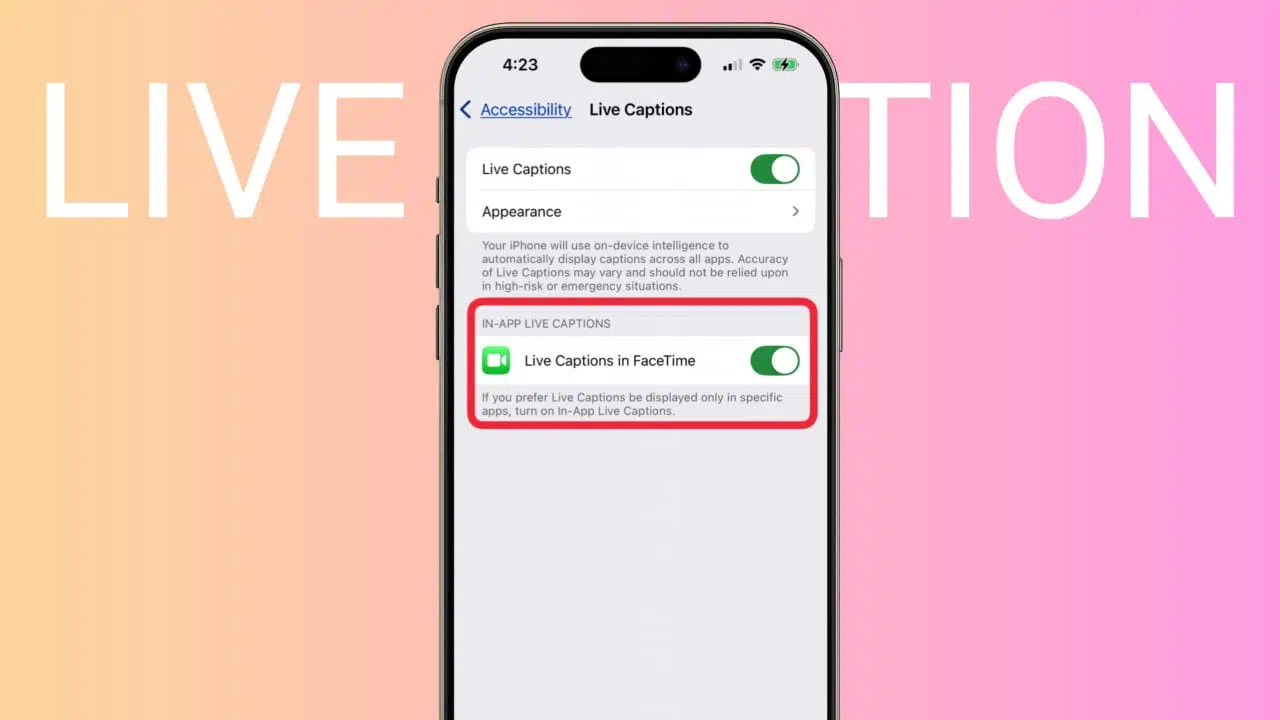
Step 3: Select Live Captions
Under the Hearing section, tap Live Captions.
Step 4: Turn On Live Captions
Toggle the Live Captions switch to enable the feature.
Once activated, your iPhone will automatically generate captions for supported audio.
Step 5: Customize Caption Settings
You can adjust:
- Caption size
- Font style
- Text background
- Caption position
These options allow you to personalize the experience.
At Unplix, we recommend adjusting the text size for easier reading.
How to Enable Live Captions on iPad
The process for iPad is very similar.
Steps to Follow
- Open Settings on your iPad.
- Tap Accessibility.
- Select Live Captions.
- Toggle the feature ON.
- Adjust display settings if needed.
Once enabled, captions will appear whenever your device detects speech.
This feature is especially helpful when watching lectures or tutorials.
How to Enable Live Captions on Mac
Mac users can also use Live Captions easily.
Step-by-Step Instructions
Step 1: Open System Settings
Click the Apple menu and select System Settings.
Step 2: Go to Accessibility
Find and open Accessibility settings.
Step 3: Select Live Captions
Under the Hearing section, click Live Captions.
Step 4: Turn On the Feature
Enable the Live Captions toggle.
Once activated, captions will appear during audio playback and video calls.
Many readers on Unplix use this feature during online meetings and webinars.
When Do Live Captions Appear?
Live Captions can appear in many situations, including:
- Watching online videos
- Listening to podcasts
- Attending video calls
- Streaming movies
- Watching social media content
The captions automatically detect spoken audio and display text in real time.
Benefits of Using Live Captions
Live Captions provide several important advantages.
1. Improved Accessibility
People with hearing challenges can follow conversations more easily.
2. Better Understanding
Captions help you catch words that might be missed due to poor audio.
3. Useful in Noisy Environments
If you are in a crowded place, captions help you understand audio without increasing volume.
4. Helpful for Learning
Students can follow lectures and educational videos more effectively.
5. Supports Multitasking
Captions allow you to follow audio content while working quietly.
According to Unplix, accessibility tools like Live Captions are becoming an important part of everyday technology.
Common Problems and Solutions
Some users may face small issues when enabling Live Captions. Here are solutions to common problems.
Problem 1: Live Captions Option Not Available
Solution:
Update your device to the latest iOS, iPadOS, or macOS version.
Problem 2: Captions Not Appearing
Solution:
Ensure audio is playing and the feature is enabled in Accessibility settings.
Problem 3: Captions Blocking Screen Content
Solution:
Move the caption box to another location on the screen.
Problem 4: Incorrect Words in Captions
Solution:
Speech recognition may occasionally misinterpret words. Clear audio improves accuracy.
Problem 5: Feature Consuming Battery
Solution:
Turn off Live Captions when not needed to save battery.
Most of these issues can be fixed quickly through device settings.
Tips to Improve Live Caption Accuracy
For better results:
- Use clear audio sources
- Avoid excessive background noise
- Keep your device updated
- Use headphones when possible
These small adjustments can improve caption accuracy significantly.
Privacy and Security
Apple processes Live Captions locally on your device whenever possible. This helps protect user privacy.
Your audio is not stored or shared unnecessarily.
At Unplix, we always recommend using official system features instead of unknown third-party apps for sensitive tasks.
Frequently Asked Questions (FAQ)
1. Are Live Captions available on all iPhones?
Live Captions are supported on newer iPhones with updated iOS versions. Older models may not support the feature.
2. Can Live Captions work without internet?
Yes. In many cases, Live Captions can work offline because the speech recognition happens on the device.
3. Do Live Captions work with video calls?
Yes. They can generate captions during supported video calls and online meetings.
4. Can I change the caption size?
Yes. You can customize the text size and style in Accessibility settings.
5. Are Live Captions accurate?
Live Captions are generally accurate but may occasionally misinterpret speech, especially in noisy environments.
When Should You Use Live Captions?
Live Captions are especially helpful when:
- Watching videos quietly
- Attending meetings in noisy environments
- Studying educational content
- Improving accessibility
These situations make the feature extremely useful for everyday users.
Final Thoughts
Live Captions are one of the most useful accessibility features available on Apple devices today. They make audio content easier to understand and improve accessibility for millions of users.
Whether you are watching videos, attending meetings, or learning online, enabling Live Captions on your iPhone, iPad, or Mac can significantly improve your experience.
The best part is that it only takes a few minutes to enable.
For more simple technology guides and tutorials, keep exploring helpful resources from Unplix.