Ever received a PDF on your iPhone and needed to quickly sign it, highlight text, or fix a small mistake?
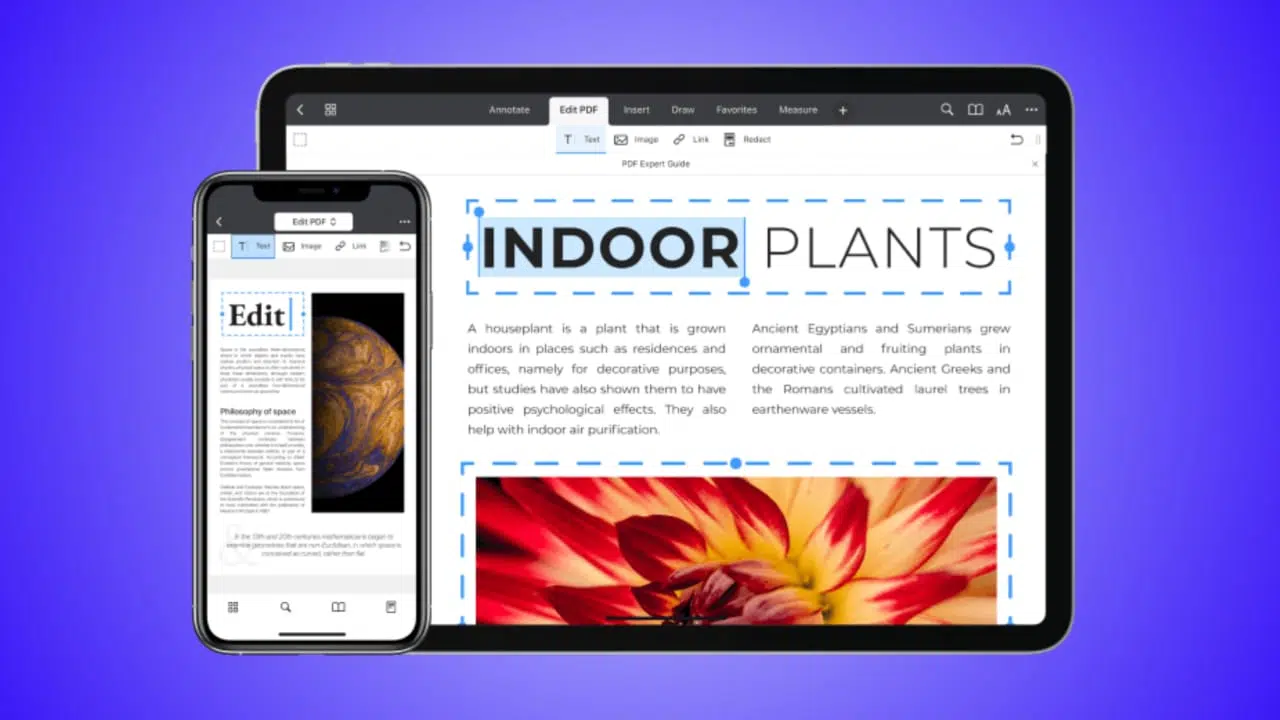
Many people think editing a PDF requires a computer or expensive software. But in 2026, that’s no longer true. You can easily edit PDF files directly on your iPhone or iPad — and in many cases, completely free.
In this step-by-step guide by Unplix, you’ll learn how to edit PDF on iPhone and iPad using free built-in tools and safe third-party apps. This guide is designed for beginners and general users who want simple and reliable methods.
Let’s begin.
Can You Really Edit PDF on iPhone and iPad for Free?
Yes, you can.
Apple devices come with built-in features that allow you to:
- Highlight text
- Add comments
- Insert signatures
- Draw on documents
- Fill out forms
For more advanced editing like changing text content, you may need additional free apps.
At Unplix, we always recommend starting with built-in tools before downloading extra apps.
Method 1: Edit PDF Using the Files App (Built-In Method)
The easiest way to edit PDF on iPhone or iPad is through the Files app.
Step-by-Step Guide
Step 1: Open the PDF File
- Open the Files app.
- Locate your PDF file.
- Tap to open it.
Step 2: Tap the Markup Icon
In the top corner, tap the Markup (pen tip icon).
This opens editing tools such as:
- Pen
- Highlighter
- Pencil
- Eraser
- Text tool
- Signature tool
Step 3: Add Text or Highlight Content
To add text:
- Tap the “+” icon.
- Select “Text.”
- Type your content.
You can also drag and resize the text box.
To highlight:
- Select the highlighter tool
- Drag over the text
Step 4: Save the Edited PDF
Once finished:
- Tap “Done”
- Your changes are saved automatically
This method is completely free and works on both iPhone and iPad.
According to Unplix, this is the fastest solution for simple edits.
Method 2: Edit PDF Using the Notes App
Another free method is the Notes app.
Steps:
- Open the PDF file.
- Tap Share.
- Select “Save to Notes.”
- Open the file inside Notes.
- Tap Markup to edit.
You can:
- Add handwritten notes
- Insert signatures
- Highlight important sections
This is ideal for students and professionals reviewing documents.
Method 3: Edit PDF Using Free Third-Party Apps
If you need advanced editing like modifying existing text or rearranging pages, consider free apps.
Popular free options in 2026 include:
- Adobe Acrobat Reader (Free version)
- PDF Expert (Limited free features)
- Smallpdf app
These apps allow:
- Fillable form editing
- Page reordering
- Basic text edits
- Cloud syncing
At Unplix, we suggest downloading apps only from the official App Store to avoid security risks.
How to Sign a PDF on iPhone or iPad
Signing documents digitally is very common today.
Steps to Sign a PDF:
- Open the PDF in Files.
- Tap Markup.
- Tap “+” icon.
- Select “Signature.”
- Create or choose your saved signature.
- Place it where needed.
- Tap Done.
Your signature is securely saved for future use.
Benefits of Editing PDF on iPhone and iPad
Editing PDF on mobile devices offers several advantages.
1. Convenience
You don’t need a laptop.
2. Time-Saving
Quick edits can be done in seconds.
3. Free Tools Available
No expensive software required.
4. Secure Editing
Apple’s built-in tools protect your privacy.
5. Easy Sharing
You can instantly share edited files via email or messaging apps.
As highlighted on Unplix, mobile productivity tools are becoming essential in 2026.
Common Problems & Solutions
Even simple tools may cause confusion sometimes.
Problem 1: Cannot Edit Existing Text
Solution:
Built-in tools don’t allow direct text replacement. Use a third-party app for advanced editing.
Problem 2: Markup Option Not Visible
Solution:
Make sure the file is opened inside the Files or Notes app.
Problem 3: PDF Is Read-Only
Solution:
Check if the document has editing restrictions set by the creator.
Problem 4: Signature Not Saving
Solution:
Update your iOS version and try again.
Problem 5: Formatting Issues After Editing
Solution:
Avoid overlapping text boxes and resize carefully.
Following simple steps usually prevents most issues.
Security Tips When Editing PDFs
Protecting your documents is important.
- Avoid uploading sensitive documents to unknown websites
- Use official apps only
- Enable Face ID or Touch ID on your device
- Keep your iOS updated
At Unplix, digital safety is always a top recommendation.
Frequently Asked Questions (FAQ)
1. Can I edit PDF text directly on iPhone for free?
You can add text and comments using built-in tools. For changing original text, use free third-party apps.
2. Is it safe to use free PDF editing apps?
Yes, if downloaded from the official App Store and from trusted developers.
3. Do I need internet to edit PDF on iPhone?
No. Built-in editing tools work offline.
4. Can I rearrange PDF pages on iPhone?
Yes, using apps like Adobe Acrobat Reader or PDF Expert.
5. Does editing a PDF reduce quality?
Basic markup does not reduce quality. However, multiple exports from some apps may affect formatting.
Which Method Is Best for You?
It depends on your needs.
For simple tasks like:
- Highlighting
- Signing
- Adding notes
Use built-in tools.
For advanced editing like:
- Modifying original text
- Rearranging pages
- Converting files
Use trusted third-party apps.
Readers of Unplix often prefer starting with built-in tools before exploring other options.
Final Thoughts
Editing a PDF on iPhone or iPad in 2026 is easier than ever.
With built-in tools like Files and Notes, you can handle most tasks for free. For advanced features, trusted apps provide additional flexibility.
You don’t need technical skills or expensive software.
Start with the simple methods explained in this guide, and choose the solution that fits your needs.
For more easy-to-follow tech guides and productivity tips, keep visiting Unplix.